DBHub is a universal database gateway implementing the Model Context Protocol (MCP) server interface.
Created 1 year ago
DBHub is a universal database gateway implementing the Model Context Protocol (MCP) server interface.
What is DBHub is a universal database gateway implementing the Model Context Protocol (MCP) server interface.?
DBHub is a universal database gateway implementing the Model Context Protocol (MCP) server interface. This gateway allows MCP-compatible clients to connect to and explore different databases. It supports various databases including PostgreSQL, MySQL, MariaDB, SQL Server, and SQLite. DBHub can be run in demo mode with a sample employee database and supports SSH tunneling for secure connections.
Documentation
[!NOTE]
Brought to you by Bytebase, open-source database DevSecOps platform.
cursor://anysphere.cursor-deeplink/mcp/install?name=dbhub&config=eyJjb21tYW5kIjoibnB4IEBieXRlYmFzZS9kYmh1YiIsImVudiI6eyJUUkFOU1BPUlQiOiJzdGRpbyIsIkRTTiI6InBvc3RncmVzOi8vdXNlcjpwYXNzd29yZEBsb2NhbGhvc3Q6NTQzMi9kYm5hbWU%2Fc3NsbW9kZT1kaXNhYmxlIiwiUkVBRE9OTFkiOiJ0cnVlIn19
DBHub is a universal database gateway implementing the Model Context Protocol (MCP) server interface. This gateway allows MCP-compatible clients to connect to and explore different databases.
 +------------------+    +--------------+    +------------------+
 |                  |    |              |    |                  |
 |                  |    |              |    |                  |
 |  Claude Desktop  +--->+              +--->+    PostgreSQL    |
 |                  |    |              |    |                  |
 |  Claude Code     +--->+              +--->+    SQL Server    |
 |                  |    |              |    |                  |
 |  Cursor          +--->+    DBHub     +--->+    SQLite        |
 |                  |    |              |    |                  |
 |  Other Clients   +--->+              +--->+    MySQL         |
 |                  |    |              |    |                  |
 |                  |    |              +--->+    MariaDB       |
 |                  |    |              |    |                  |
 |                  |    |              |    |                  |
 +------------------+    +--------------+    +------------------+
      MCP Clients           MCP Server             Databases
Demo HTTP Endpoint
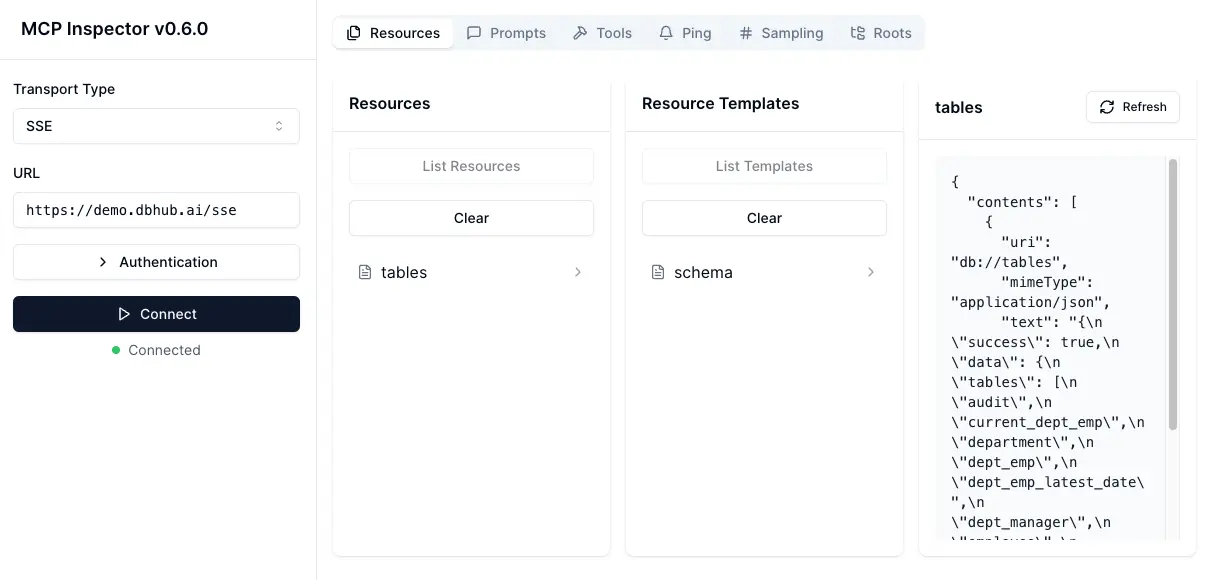
https://demo.dbhub.ai/message connects a sample employee database. You can point Cursor or MCP Inspector to it to see it in action.
Supported Matrix# Database Resources
| Resource Name | URI Format | PostgreSQL | MySQL | MariaDB | SQL Server | SQLite |
|---|---|---|---|---|---|---|
| schemas | db://schemas |
✅ | ✅ | ✅ | ✅ | ✅ |
| tables_in_schema | db://schemas/{schemaName}/tables |
✅ | ✅ | ✅ | ✅ | ✅ |
| table_structure_in_schema | db://schemas/{schemaName}/tables/{tableName} |
✅ | ✅ | ✅ | ✅ | ✅ |
| indexes_in_table | db://schemas/{schemaName}/tables/{tableName}/indexes |
✅ | ✅ | ✅ | ✅ | ✅ |
| procedures_in_schema | db://schemas/{schemaName}/procedures |
✅ | ✅ | ✅ | ✅ | ❌ |
| procedure_details_in_schema | db://schemas/{schemaName}/procedures/{procedureName} |
✅ | ✅ | ✅ | ✅ | ❌ |
Database Tools
| Tool | Command Name | Description | PostgreSQL | MySQL | MariaDB | SQL Server | SQLite |
|---|---|---|---|---|---|---|---|
| Execute SQL | execute_sql |
Execute single or multiple SQL statements (separated by semicolons) | ✅ | ✅ | ✅ | ✅ | ✅ |
Prompt Capabilities
| Prompt | Command Name | PostgreSQL | MySQL | MariaDB | SQL Server | SQLite |
|---|---|---|---|---|---|---|
| Generate SQL | generate_sql |
✅ | ✅ | ✅ | ✅ | ✅ |
| Explain DB Elements | explain_db |
✅ | ✅ | ✅ | ✅ | ✅ |
Installation# Docker
docker run --rm --init \
- -name dbhub \
- -publish 8080:8080 \
   bytebase/dbhub \
- -transport http \
- -port 8080 \
- -dsn "postgres://user:password@localhost:5432/dbname?sslmode=disable"
docker run --rm --init \
- -name dbhub \
- -publish 8080:8080 \
   bytebase/dbhub \
- -transport http \
- -port 8080 \
- -demo
NPM
npx @bytebase/dbhub --transport http --port 8080 --dsn "postgres://user:password@localhost:5432/dbname?sslmode=disable"

# Demo mode with sqlite sample employee database
npx @bytebase/dbhub --transport http --port 8080 --demo
npx @bytebase/dbhub --transport http --port 8080 --demo
Note: The demo mode includes a bundled SQLite sample "employee" database with tables for employees, departments, salaries, and more.
Claude Desktop
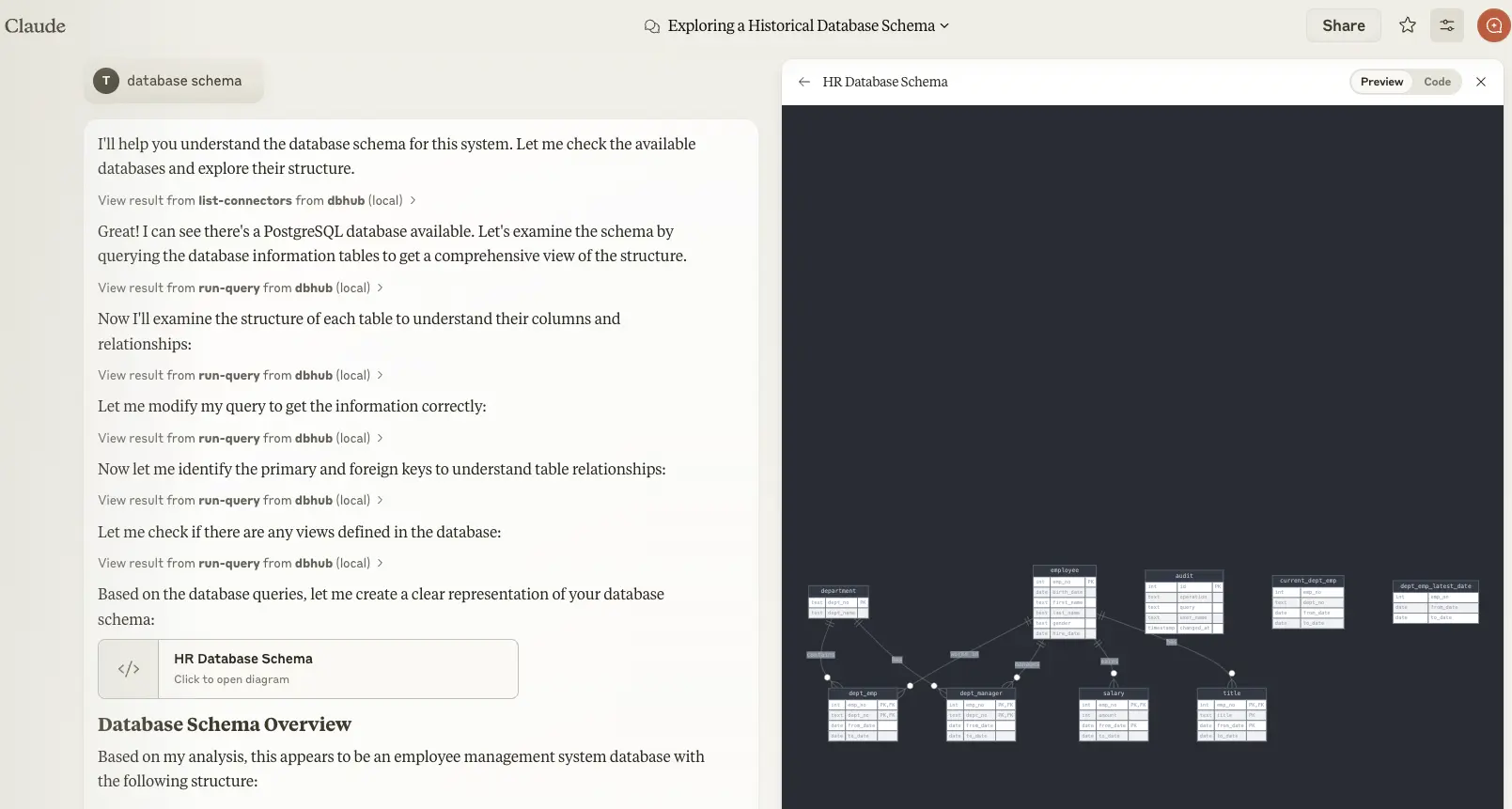
- Claude Desktop only supports
stdiotransport https://github.com/orgs/modelcontextprotocol/discussions/16
// claude_desktop_config.json
{
  "mcpServers": {
    "dbhub-postgres-docker": {
      "command": "docker",
      "args": [
        "run",
        "-i",
        "--rm",
        "bytebase/dbhub",
        "--transport",
        "stdio",
        "--dsn",
        // Use host.docker.internal as the host if connecting to the local db
        "postgres://user:[email protected]:5432/dbname?sslmode=disable"
      ]
    },
    "dbhub-postgres-npx": {
      "command": "npx",
      "args": [
        "-y",
        "@bytebase/dbhub",
        "--transport",
        "stdio",
        "--dsn",
        "postgres://user:password@localhost:5432/dbname?sslmode=disable"
      ]
    },
    "dbhub-demo": {
      "command": "npx",
      "args": ["-y", "@bytebase/dbhub", "--transport", "stdio", "--demo"]
    }
  }
}
Claude Code
Check https://docs.anthropic.com/en/docs/claude-code/mcp
Cursor
cursor://anysphere.cursor-deeplink/mcp/install?name=dbhub&config=eyJjb21tYW5kIjoibnB4IEBieXRlYmFzZS9kYmh1YiIsImVudiI6eyJUUkFOU1BPUlQiOiJzdGRpbyIsIkRTTiI6InBvc3RncmVzOi8vdXNlcjpwYXNzd29yZEBsb2NhbGhvc3Q6NTQzMi9kYm5hbWU%2Fc3NsbW9kZT1kaXNhYmxlIiwiUkVBRE9OTFkiOiJ0cnVlIn19
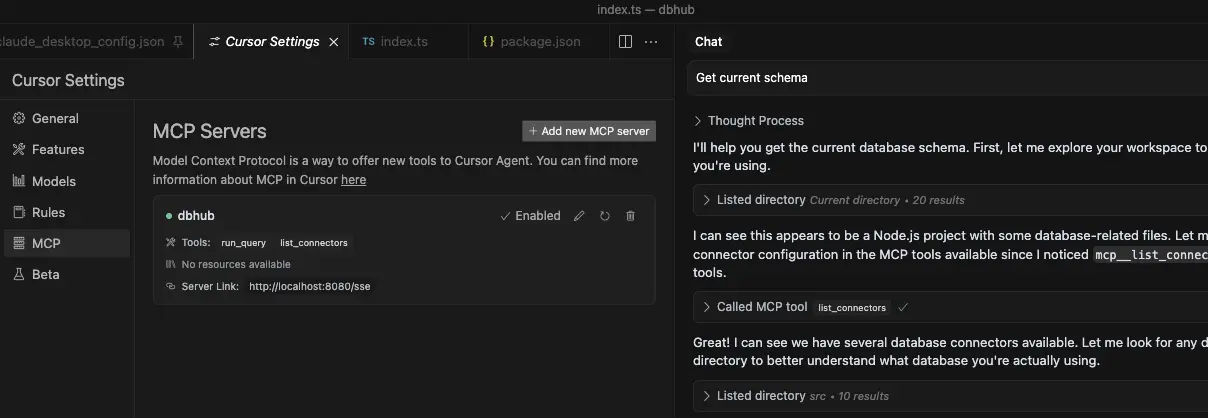
- Cursor supports both
stdioandhttp. - Follow Cursor MCP guide and make sure to use Agent mode.
Usage# Read-only Mode
You can run DBHub in read-only mode, which restricts SQL query execution to read-only operations:
npx @bytebase/dbhub --readonly --dsn "postgres://user:password@localhost:5432/dbname"
In read-only mode, only readonly SQL operations are allowed.
This provides an additional layer of security when connecting to production databases.
SSL Connections
You can specify the SSL mode using the sslmode parameter in your DSN string:
| Database | sslmode=disable |
sslmode=require |
Default SSL Behavior |
|---|---|---|---|
| PostgreSQL | ✅ | ✅ | Certificate verification |
| MySQL | ✅ | ✅ | Certificate verification |
| MariaDB | ✅ | ✅ | Certificate verification |
| SQL Server | ✅ | ✅ | Certificate verification |
| SQLite | ❌ | ❌ | N/A (file-based) |
SSL Mode Options:
sslmode=disable: All SSL/TLS encryption is turned off. Data is transmitted in plaintext.sslmode=require: Connection is encrypted, but the server's certificate is not verified. This provides protection against packet sniffing but not against man-in-the-middle attacks. You may use this for trusted self-signed CA.
Without specifying sslmode, most databases default to certificate verification, which provides the highest level of security.
Example usage:
postgres://user:password@localhost:5432/dbname?sslmode=disable

# Require SSL without certificate verification
postgres://user:password@localhost:5432/dbname?sslmode=require

# Standard SSL with certificate verification (default)
postgres://user:password@localhost:5432/dbname
SSH Tunnel Support
DBHub supports connecting to databases through SSH tunnels, enabling secure access to databases in private networks or behind firewalls.
Using SSH Config File (Recommended)
DBHub can read SSH connection settings from your ~/.ssh/config file. Simply use the host alias from your SSH config:
npx @bytebase/dbhub \
- -dsn "postgres://dbuser:[email protected]:5432/mydb" \
- -ssh-host mybastion
DBHub will automatically use the settings from your SSH config, including hostname, user, port, and identity file. If no identity file is specified in the config, DBHub will try common default locations (~/.ssh/id_rsa, ~/.ssh/id_ed25519, etc.).
SSH with Password Authentication
npx @bytebase/dbhub \
- -dsn "postgres://dbuser:[email protected]:5432/mydb" \
- -ssh-host bastion.example.com \
- -ssh-user ubuntu \
- -ssh-password mypassword
SSH with Private Key Authentication
npx @bytebase/dbhub \
- -dsn "postgres://dbuser:[email protected]:5432/mydb" \
- -ssh-host bastion.example.com \
- -ssh-user ubuntu \
- -ssh-key ~/.ssh/id_rsa
SSH with Private Key and Passphrase
npx @bytebase/dbhub \
- -dsn "postgres://dbuser:[email protected]:5432/mydb" \
- -ssh-host bastion.example.com \
- -ssh-port 2222 \
- -ssh-user ubuntu \
- -ssh-key ~/.ssh/id_rsa \
- -ssh-passphrase mykeypassphrase
Using Environment Variables
export SSH_HOST=bastion.example.com
export SSH_USER=ubuntu
export SSH_KEY=~/.ssh/id_rsa
npx @bytebase/dbhub --dsn "postgres://dbuser:[email protected]:5432/mydb"
Note: When using SSH tunnels, the database host in your DSN should be the hostname/IP as seen from the SSH server (bastion host), not from your local machine.
Configure your database connection
You can use DBHub in demo mode with a sample employee database for testing:
npx @bytebase/dbhub --demo
[!WARNING] If your user/password contains special characters, you need to escape them first. (e.g.
pass#wordshould be escaped aspass%23word)
For real databases, a Database Source Name (DSN) is required. You can provide this in several ways:
-
Command line argument (highest priority):
npx @bytebase/dbhub --dsn "postgres://user:password@localhost:5432/dbname?sslmode=disable" -
Environment variable (second priority):
export DSN="postgres://user:password@localhost:5432/dbname?sslmode=disable" npx @bytebase/dbhub -
Environment file (third priority):
-
For development: Create
.env.localwith your DSN -
For production: Create
.envwith your DSNDSN=postgres://user:password@localhost:5432/dbname?sslmode=disable
[!WARNING] When running in Docker, use
host.docker.internalinstead oflocalhostto connect to databases running on your host machine. For example:mysql://user:[email protected]:3306/dbname
DBHub supports the following database connection string formats:
| Database | DSN Format | Example |
|---|---|---|
| MySQL | mysql://[user]:[password]@[host]:[port]/[database] |
mysql://user:password@localhost:3306/dbname?sslmode=disable |
| MariaDB | mariadb://[user]:[password]@[host]:[port]/[database] |
mariadb://user:password@localhost:3306/dbname?sslmode=disable |
| PostgreSQL | postgres://[user]:[password]@[host]:[port]/[database] |
postgres://user:password@localhost:5432/dbname?sslmode=disable |
| SQL Server | sqlserver://[user]:[password]@[host]:[port]/[database] |
sqlserver://user:password@localhost:1433/dbname?sslmode=disable |
| SQLite | sqlite:///[path/to/file] or sqlite:///:memory: |
sqlite:///path/to/database.db, sqlite:C:/Users/YourName/data/database.db (windows) or sqlite:///:memory: |
SQL Server
Extra query parameters:
authentication
authentication=azure-active-directory-access-token. Only applicable when running from Azure. See DefaultAzureCredential.
Transport
-
stdio (default) - for direct integration with tools like Claude Desktop:
npx @bytebase/dbhub --transport stdio --dsn "postgres://user:password@localhost:5432/dbname?sslmode=disable" -
http - for browser and network clients:
npx @bytebase/dbhub --transport http --port 5678 --dsn "postgres://user:password@localhost:5432/dbname?sslmode=disable"
Command line options
| Option | Environment Variable | Description | Default |
|---|---|---|---|
| dsn | DSN |
Database connection string | Required if not in demo mode |
| transport | TRANSPORT |
Transport mode: stdio or http |
stdio |
| port | PORT |
HTTP server port (only applicable when using --transport=http) |
8080 |
| readonly | READONLY |
Restrict SQL execution to read-only operations | false |
| demo | N/A | Run in demo mode with sample employee database | false |
| ssh-host | SSH_HOST |
SSH server hostname for tunnel connection | N/A |
| ssh-port | SSH_PORT |
SSH server port | 22 |
| ssh-user | SSH_USER |
SSH username | N/A |
| ssh-password | SSH_PASSWORD |
SSH password (for password authentication) | N/A |
| ssh-key | SSH_KEY |
Path to SSH private key file | N/A |
| ssh-passphrase | SSH_PASSPHRASE |
Passphrase for SSH private key | N/A |
The demo mode uses an in-memory SQLite database loaded with the sample employee database that includes tables for employees, departments, titles, salaries, department employees, and department managers. The sample database includes SQL scripts for table creation, data loading, and testing.
Development
-
Install dependencies:
pnpm install -
Run in development mode:
pnpm dev -
Build for production:
pnpm build
pnpm start --transport stdio --dsn "postgres://user:password@localhost:5432/dbname?sslmode=disable"
Testing
The project uses Vitest for comprehensive unit and integration testing:
- Run all tests:
pnpm test - Run tests in watch mode:
pnpm test:watch - Run integration tests:
pnpm test:integration
Integration Tests
DBHub includes comprehensive integration tests for all supported database connectors using Testcontainers. These tests run against real database instances in Docker containers, ensuring full compatibility and feature coverage.
Prerequisites
- Docker: Ensure Docker is installed and running on your machine
- Docker Resources: Allocate sufficient memory (recommended: 4GB+) for multiple database containers
- Network Access: Ability to pull Docker images from registries
Running Integration Tests
Note: This command runs all integration tests in parallel, which may take 5-15 minutes depending on your system resources and network speed.
pnpm test:integration
pnpm test src/connectors/__tests__/postgres.integration.test.ts\n\n# Run only MySQL integration tests
pnpm test src/connectors/__tests__/mysql.integration.test.ts\n\n# Run only MariaDB integration tests
pnpm test src/connectors/__tests__/mariadb.integration.test.ts\n\n# Run only SQL Server integration tests
pnpm test src/connectors/__tests__/sqlserver.integration.test.ts\n\n# Run only SQLite integration tests
pnpm test src/connectors/__tests__/sqlite.integration.test.ts\n\n# Run JSON RPC integration tests
pnpm test src/__tests__/json-rpc-integration.test.ts
All integration tests follow these patterns:
- Container Lifecycle: Start database container → Connect → Setup test data → Run tests → Cleanup
- Shared Test Utilities: Common test patterns implemented in
IntegrationTestBaseclass - Database-Specific Features: Each database includes tests for unique features and capabilities
- Error Handling: Comprehensive testing of connection errors, invalid SQL, and edge cases
Troubleshooting Integration Tests
Container Startup Issues:
docker ps

# Check available memory
docker system df

# Pull images manually if needed
docker pull postgres:15-alpine
docker pull mysql:8.0
docker pull mariadb:10.11
docker pull mcr.microsoft.com/mssql/server:2019-latest
SQL Server Timeout Issues:
- SQL Server containers require significant startup time (3-5 minutes)
- Ensure Docker has sufficient memory allocated (4GB+ recommended)
- Consider running SQL Server tests separately if experiencing timeouts
Network/Resource Issues:
pnpm test:integration --reporter=verbose

# Run single database test to isolate issues
pnpm test:integration -- --testNamePattern="PostgreSQL"

# Check Docker container logs if tests fail
docker logs <container_id>
Pre-commit Hooks (for Developers)
The project includes pre-commit hooks to run tests automatically before each commit:
-
After cloning the repository, set up the pre-commit hooks:
./scripts/setup-husky.sh -
This ensures the test suite runs automatically whenever you create a commit, preventing commits that would break tests.
Debug with MCP Inspector## stdio
TRANSPORT=stdio DSN="postgres://user:password@localhost:5432/dbname?sslmode=disable" npx @modelcontextprotocol/inspector node /path/to/dbhub/dist/index.js
HTTP
pnpm dev --transport=http --port=8080

# Start the MCP Inspector in another terminal
npx @modelcontextprotocol/inspector
Connect to the DBHub server /message endpoint
Contributors
Star History
Server Config
{
  "mcpServers": {
    "dbhub-is-a-universal-database-gateway-implementing-the-model-context-protocol-(mcp)-server-interface.-server": {
      "command": "npx",
      "args": [
        "dbhub-is-a-universal-database-gateway-implementing-the-model-context-protocol-(mcp)-server-interface."
      ]
    }
  }
}